How to use the app at work
This guide is for the people who do the work. The app shows you your visits every day and records your hours.
The guide, always up to date: pronto-apps.com/en/guide/team
Sign in to the app
-
The company puts your email in the app, and the app sends you an email that explains how to sign in.
-
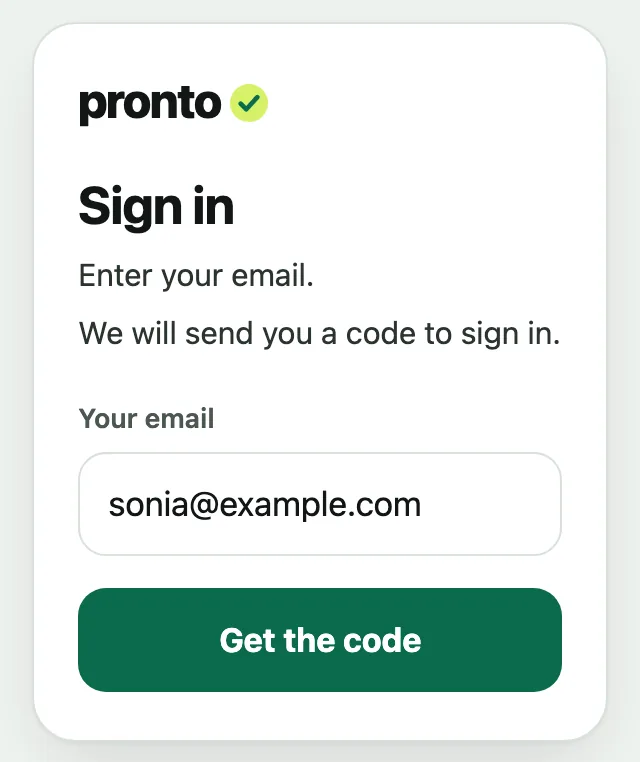
On your phone, open app.pronto-apps.com. Enter your email and click Get the code.
-
The 6-digit code is in the subject of the email. Enter it in the app and click Sign in.
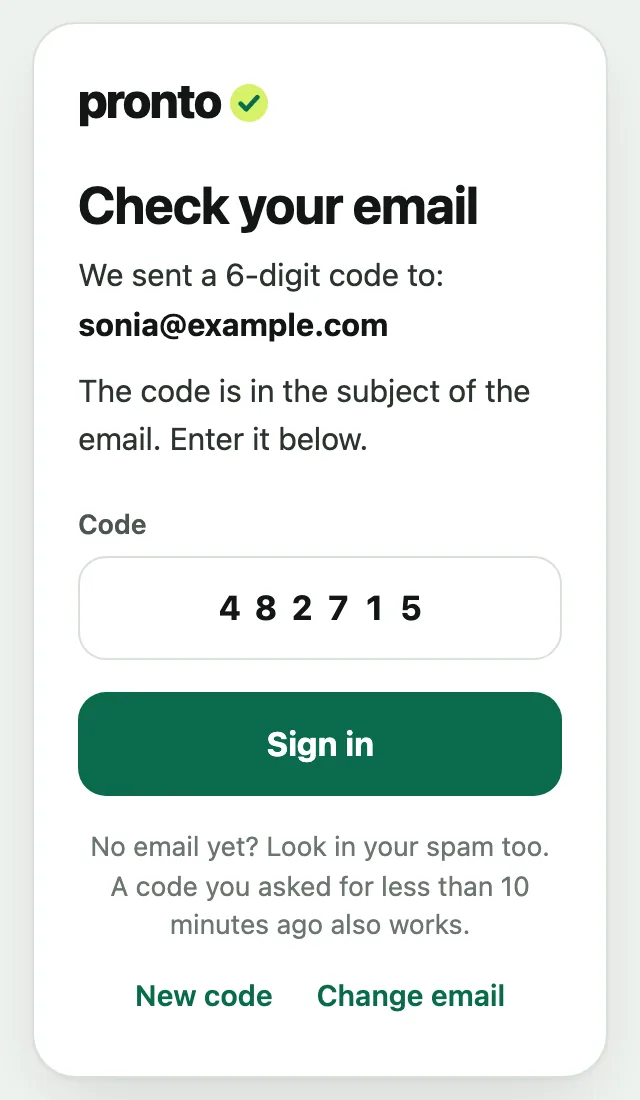
If the code does not arrive, look in your spam or click New code.
-
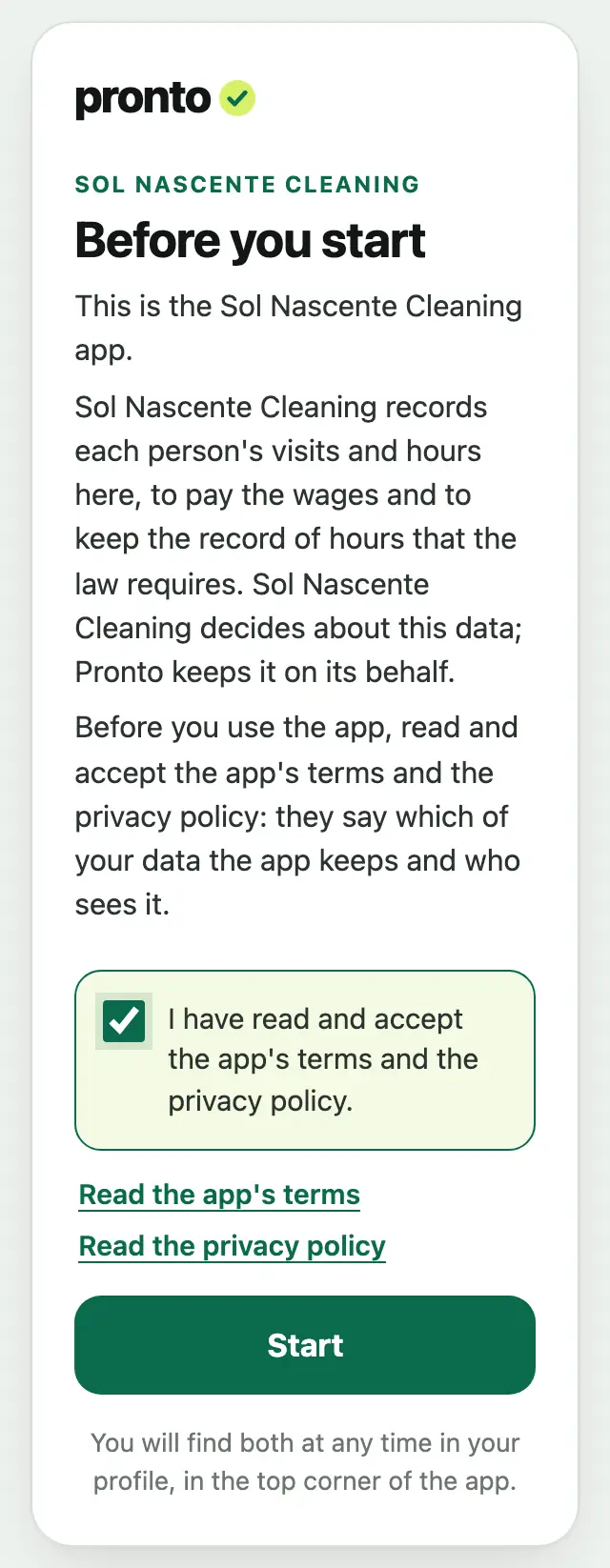
The first time, tick I have read and accept the app's terms and the privacy policy and click Start.
If the app says it is not ready yet, the company has not switched it on yet. Later, click Check again.
The app on your home screen
This way you open the app with one click, like the other apps on your phone.
Android
-
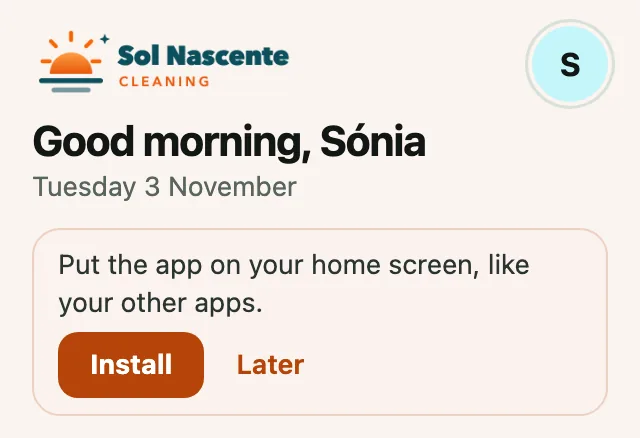
Open the app in Chrome. When this message appears, click Install. Leave the page open until you see The app is installed.
-
If the message does not appear, click the three dots ⋮ in Chrome, at the top right, and then Install app or Add to Home screen. You can also click your initial, at the top right, and then Install the app. This is also how you put it back if you removed it.
On some phones, such as Xiaomi phones, you have to allow Chrome to create shortcuts on the home screen, in the phone's settings.
iPhone
-
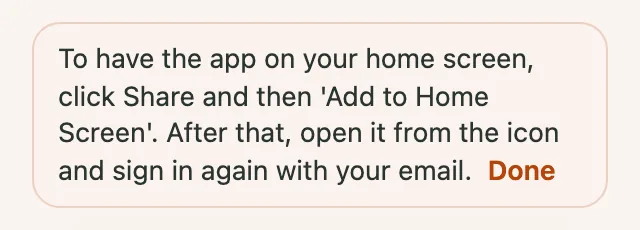
In Safari, click Share (the square with the arrow pointing up) and then Add to Home Screen.
-
Open the app from the new icon and sign in again with your email and the code.
Today's visits
-
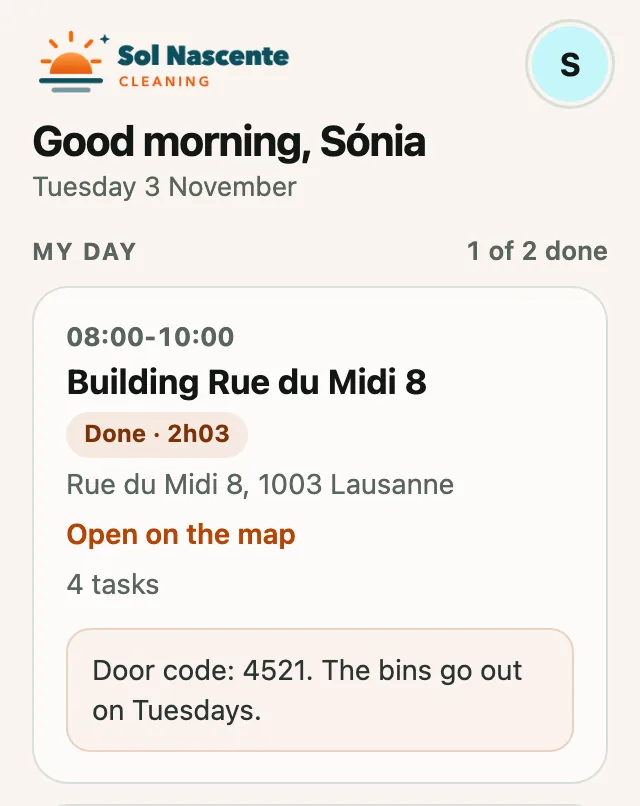
In Today you see your visits for the day, in order of time. The ones you have already done are marked Done.
-
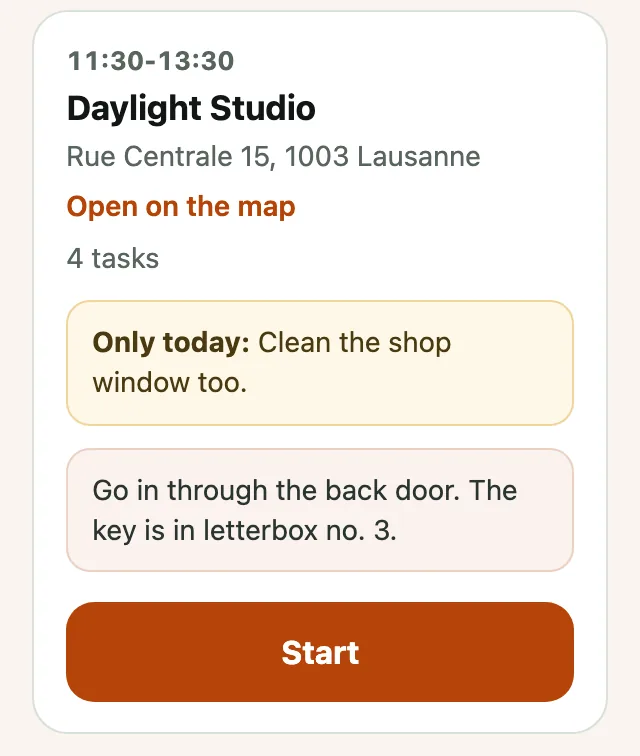
Each visit shows the time, the client, the address and the company's note, such as the door code or where the key is. If something applies only to that day, you see it above, with Only today. Click Open on the map to see the route. If you go with someone else from the team, the visit shows who with, for example With Paulo.
At the client
-
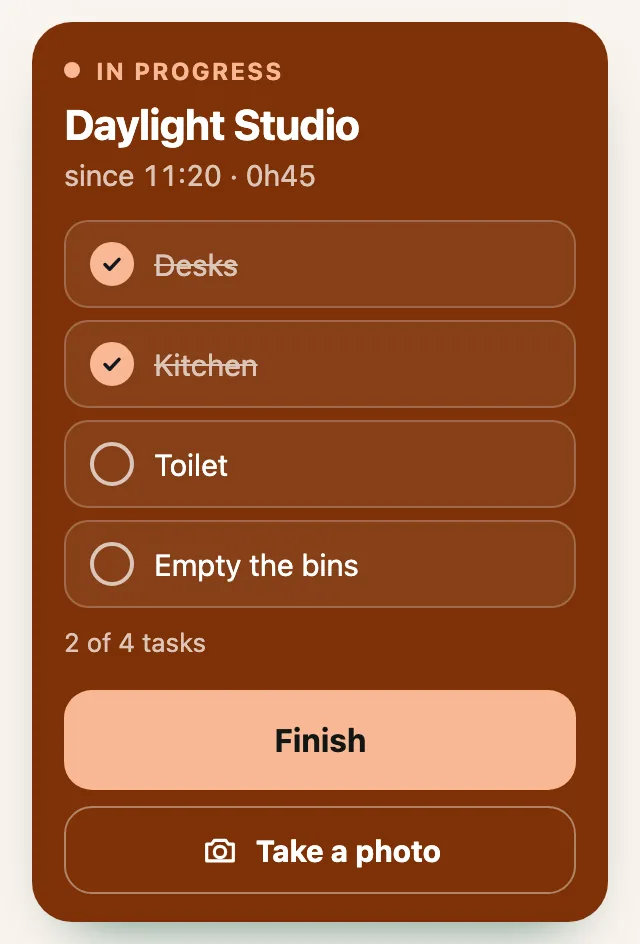
When you arrive, click Start. The company sees straight away that you have started.
-
When you finish a task, click it. It is then ticked off.
-
With Take a photo you save a photo of the visit, for example of something broken. The photo needs signal.
-
When you leave, click Finish. The hours are recorded. If you finish after midnight, the app splits the job over the two days by itself: up to midnight on one, the rest on the next day.
-
Did you go to a client who was not planned for you today? Click Other client and choose the client.
-
If you forgot to record, click + Hours by hand, enter the hours and, if the app asks, say why, for example 'I did not click Start'. The same goes if you change the hours of a visit. In that case, these hours have the label by hand, and the company sees the reason. If the company has turned that label off, the button only says + Add hours and the app does not ask for the reason.
If you do not see this button, the company has turned it off. To correct hours, ask the company.
In a painting company
-
In a painting company, instead of Take a photo there are two buttons: Photo before, to take at the start, and Photo after, to take at the end. The photos need signal.
-
The tasks are the steps of the job. Each step is ticked only once, even if the job takes several days: a step done on another day is already ticked.
-
In Add what you used, write what you used that day, for example '2 tins of 10 L, RAL 1013', and save. This also needs signal.
-
If the company wrote down the colours and paints for the job, they appear under the steps, in Colours and paints.
The week
-
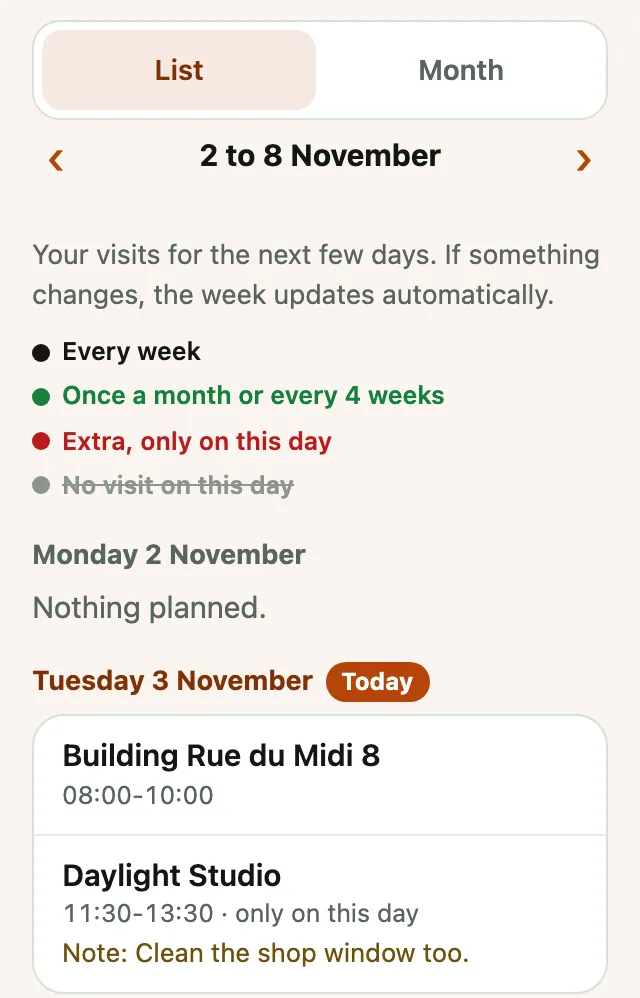
In Week you see your visits for the next few days, with the time. With the arrows ‹ and › you change week. The colour of the client's name shows how often you go there, and the key above the days explains each colour. Red means an extra visit, only on that day.
Today's date is marked Today. Saturdays, Sundays and the company's public holidays show in purple. Each public holiday shows its name next to the day.
-
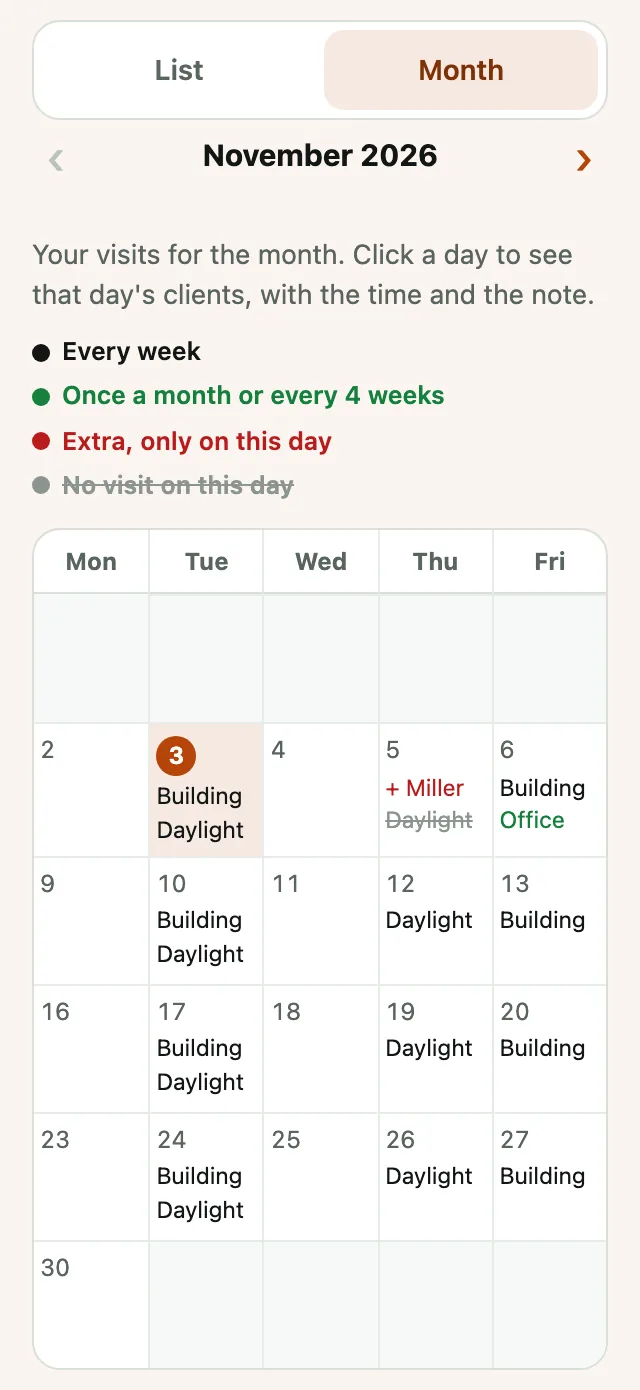
To see the whole month, like a plan on paper, click Month. Each day shows your clients. With the phone upright, you only see the first word of the name. Turn the phone to see the full names. Today's date is in a circle. With the arrows ‹ and › you see this month and the next one. To go back, click List.
-
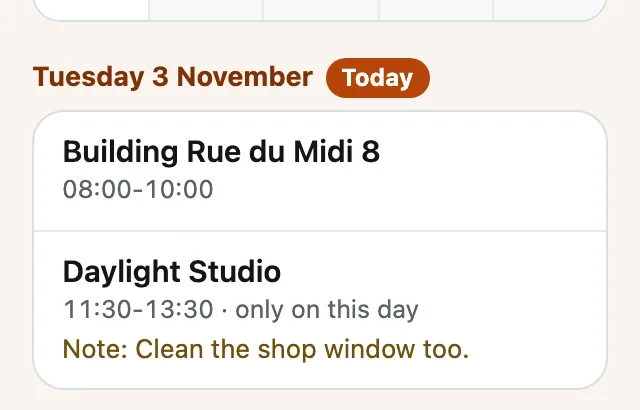
Click a day to see that day's clients below, with the time and the note.
-
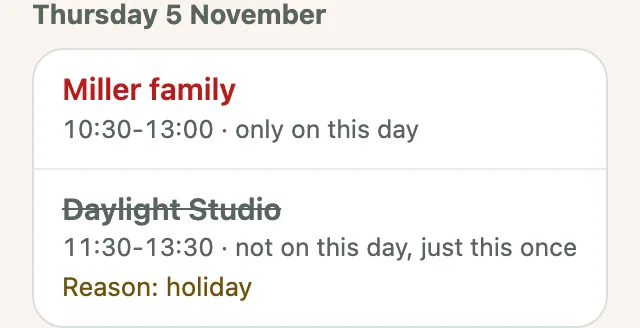
When the company changes a visit on one day only, you see only on this day. If a visit is crossed out, with not on this day, just this once, it does not happen on that day. If the company wrote a reason, you see it below, for example Reason: holiday.
Your hours
-
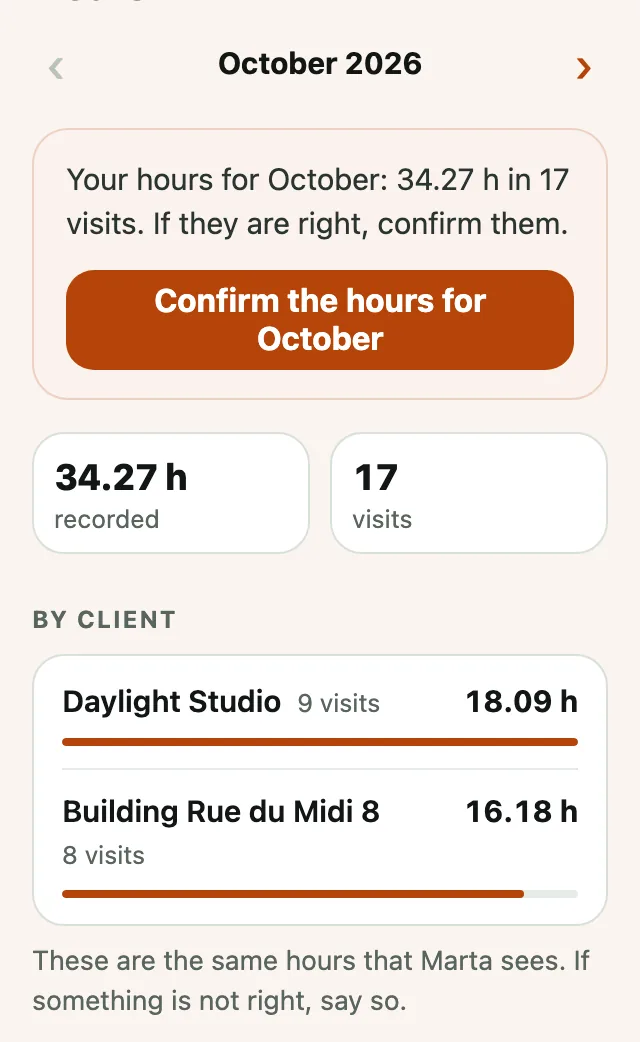
In Hours you see your hours for the month: in total, by client and, in All the hours, each visit, day by day, with the total for each day. If the company counts travel between clients, between two visits on the same day you see Travel between clients, which counts in your hours, and, if it goes over the limit, Break, which does not count. With the arrows, you see the month before. If the company closes the hours on a set day of the month, for example the 25th, the app says from which day to which day the hours count, such as From 26 October to 25 November.
-
These are the same hours that the company sees. If something is not right, tell the company. If the company changes one of your visits, the line shows who changed it and what it was before, for example Marta changed this: it was 08:00-10:00. If the company adds a visit for you, the line shows Marta added this visit.
If you do not see Hours at the bottom, the company has turned it off.
-
At the end of the month, or on the day the company chose for the month to end, the app asks you to confirm the hours for that month. Check that they are right, click Confirm the hours for October and then I confirm. The company sees that you confirmed, and when.
Then you get a copy by email, with each visit (day, client and hours) and the travel between clients, if the company counts it. The copy is in English. Keep this email: it is yours, and it stays with you even if one day you no longer have access to the app.
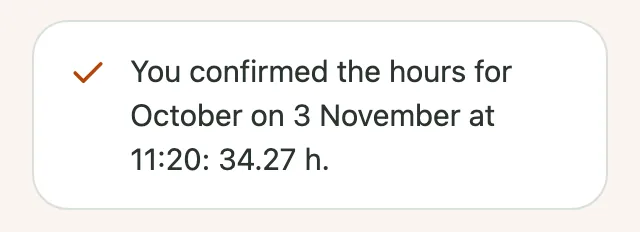
If any hours change after you confirm, the app tells you and you can confirm again.
No signal
-
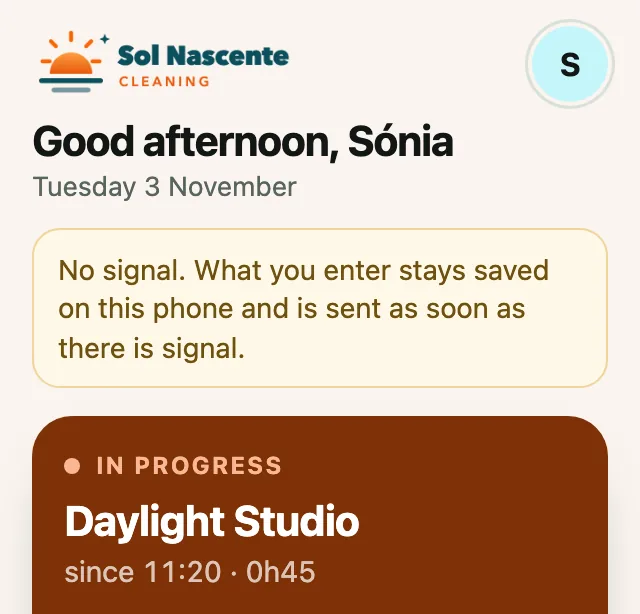
Without signal, keep recording as usual. The phone keeps everything and sends it as soon as there is signal again. The app tells you at the top.
-
Only the photos need signal. Take them again when you have signal.
Questions
For questions about the visits, the times or the hours, ask the company.
Back to the top